02·NET
Network & Connectivity
Fiber to the home, a UniFi gateway, managed PoE switches, and access points — all wired, all conveying with the house.
At a glance
A professional-grade UniFi network on fiber to the home, wired for 100% Power-over-Ethernet. It powers WiFi, the cameras/doorbell, and the smart-home devices. It stays with the house. The internet itself is dual-WAN: CenturyLink fiber as the primary line with an automatic T-Mobile 5G backup — a mature, professional-grade setup where a fiber outage is something the network quietly rides through, not something you have to manage.
- Where
- Everything except the access points lives in one closet — bedroom 3’s closet (the former office), right next to the media room: the UniFi controller, all the switches, the firewall/gateway, the fiber termination and its ethernet handoff, and the termination for the backup 5G connection. The gear sits dead centre of the closet, up on a shelf, with the structured cabling coming out of the east wall behind it. Two other systems share that closet on their own walls — the steam generator on the north wall and the alarm panel on the south. Access points are mounted around the house, on ceilings and walls.
- Must know
- If the internet goes down, the fix is almost always at the fiber box (ONT) or the gateway — see Troubleshooting, which also covers the automatic 5G failover. Changing the WiFi name or password is a two-minute job in the UniFi app — see Everyday use.
- Status
- Everything installed and operating. The controller runs locally in the network closet; the gear is powered continuously and self-updates.
2Everyday use
For 90% of daily life you never touch the network — it just works. The three things you will actually do are: get a device on WiFi, hand out guest WiFi, and occasionally open the app.
Get a device on WiFi
- On the phone or laptop, open WiFi settings and pick the house network name (SSID).
- Enter the WiFi password. The same one works everywhere in the house and yard — the access points hand a device off to each other automatically as it moves, with no reconnecting and no second network to remember.
Guest WiFi
There is a separate guest network that gives visitors internet without touching your devices, cameras, or smart-home gear. Hand guests the guest network name and password rather than your main one.
The UniFi app
The network is managed with the UniFi app (iOS/Android) and the same dashboard in a web browser. Everything an owner routinely wants is there: rename a WiFi network, change a password, see which devices are connected and how much they are using, run a speed test, and check which of the two internet connections is currently carrying the house.
- Open the UniFi app and sign in.
- Go to Settings → WiFi and pick the network to change its name or password.
- Save. Every device that used the old password needs the new one entered once.
The one rule
Why the internet basically doesn’t go down
3Maintenance
- Firmware: UniFi gear self-updates on a schedule; no action needed. After a big update, a 2-minute check that WiFi and cameras are back is worth it.
- Dust: once or twice a year, make sure the closet gear has airflow and isn’t boxed in by storage. The PoE switch runs warm — that’s normal.
- Reboots: almost never needed. If you do reboot, power the gateway back up first, then switches, then wait for access points to come back on their own.
Before you unplug anything
4Troubleshooting
| Symptom | First checks | When to escalate |
|---|---|---|
| Pages load, but the internet feels slower or “different” | This is the normal sign that the automatic failover has kicked in and you’re temporarily riding the T-Mobile 5G backup instead of fiber — everything still works, just not at gigabit fiber speed. Check the UniFi app/dashboard — exact screen to confirm to see which WAN is currently active. | Still on the 5G backup more than a day after a known fiber outage should be resolved → call CenturyLink about the fiber line. |
| No internet at all, whole house | Rare — it means both the fiber and the 5G backup are down at once. Look at the fiber box (ONT) lights and the gateway. If the ONT shows an alarm/red light, that’s CenturyLink’s side — call them. If the ONT looks normal, power-cycle the gateway. | Both WANs down after a reboot → call CenturyLink about fiber, and check the T-Mobile account/line status too. |
| WiFi weak in one spot | Confirm the nearest access point has its light on. A single AP offline drops coverage in its area only. | AP dark with the cable seated → it’s a PoE/switch-port issue (Deep dive). |
| One device won’t connect | Forget the network on that device and rejoin it with the WiFi password. Reboot the device. | Multiple devices failing at once → treat as a network-wide issue above. |
| Cameras/doorbell offline | These are PoE or WiFi devices on this network — if the whole network is down, fix that first. Otherwise power-cycle the specific device. | Persistent single-device dropouts → see Security & Access. |
Don’t factory-reset in a panic
5Specs & identity
| Internet service | Dual-WAN: CenturyLink fiber (primary) + T-Mobile 5G (automatic backup) |
|---|---|
| Primary — CenturyLink fiber | Symmetric (“synchronous”) gigabit — the same speed uploading as downloading |
| Backup — T-Mobile 5G | $20/month cellular line; the gateway fails over to it automatically if the fiber drops, and fails back once fiber returns |
| Failover configuration (thresholds, WAN priority, etc.) | Set on the gateway and covered in the Technical reference. Exact thresholds and WAN priority to confirm. |
| ONT (fiber box) location | In the network closet — see Where above |
| 5G backup termination location | Also in the network closet, alongside the fiber termination |
| Where the gear lives | Bedroom 3’s closet, next to the media room — the controller, every switch, the gateway, the fiber termination, and the 5G backup termination, all on a shelf dead centre of the closet with the cabling entering from the east wall. The steam generator (north wall) and the alarm panel (south wall) share the closet without sharing the space. |
| Controller | Runs locally in the network closet. Exact hardware to confirm — Cloud Key, a small PC, or something else. |
| Gateway | UniFi Security Gateway USG-XG-8 |
| Gateway serial / MAC | owner's edition |
| Core switch | UniFi US-48-PoE (48-port PoE) |
| Secondary switches | UniFi US-8 + an office switch |
| Switch serials / MACs | owner's edition |
| Access points | UniFi U7 Pro, AC-Pro, AC-HD |
| AP mount locations | To confirm — ceiling or wall, room by room |
| Wiring | 100% Power-over-Ethernet; gear in the network closet |
| Management IP / subnet | To confirm — on the UniFi dashboard |
| WiFi network name (SSID) | on the credentials sheet |
| WiFi password | see credentials sheet |
| Guest WiFi password | see credentials sheet |
| UniFi admin login | see credentials sheet |
Why serials and config are hidden here
| Drop 1 | Media room, projector — live Cat6 entering the ceiling directly behind the ceiling-mounted projector (blue cable, in use). |
|---|---|
| Drop 2 | Media room, screen wall — a Cat6 + coax drop at the AV cable-termination plate beside the screen. The Cat6 is patched and in use (runs to the AV stack); the coax is unterminated/unused. |
| Drop 3 | Media room, AV stack — the Xbox One S is wired via Cat6, not on WiFi. It is the far end of one of the media-room drops above, not a new drop. |
| Drop 4 | Exterior, spare — a pair of ethernet cables hangs at the corner of the east wall of the main house body, above the covered patio: a camera drop, cabled and left in place with no camera fitted. See Security & Access. |
| Switch port each lands on | To confirm — each drop traced back to its patch-panel and switch port. |
The drop map is partial
6Documents & links
Official manuals and product pages for each device are archived locally in the owner’s edition (offline copies) and linked to the manufacturer below. These are the pages an owner or their network person will actually want.
- UniFi — Ubiquiti support & downloads
Firmware, guides, and the UniFi app downloads. - UniFi Security Gateway (USG) documentation
Gateway setup and adoption references. - UniFi community forum
Genuinely useful for model-specific questions. - UniFi Security Gateway XG-8 — datasheet (PDF)
Official dl.ubnt.com. Exact match. - UniFi Security Gateway XG-8 — quick start guide (PDF)
Official dl.ubnt.com. Exact match. - UniFi Switch US-48-PoE — quick start guide (PDF)
Official dl.ubnt.com; covers the US-48-500W/750W PoE variants. - UniFi AP AC Pro — quick start guide (PDF)
Official dl.ubnt.com. Exact match. - UniFi AP AC HD — datasheet (PDF)
Official dl.ubnt.com. Exact match.
Section 8Technical reference ExpandCollapse
The engineering layer — for a buyer's technician, or a curious owner.
Written for a network person. If that’s you: this is a standard UniFi single-site deployment, cleanly wired, and it will feel immediately familiar.
Topology
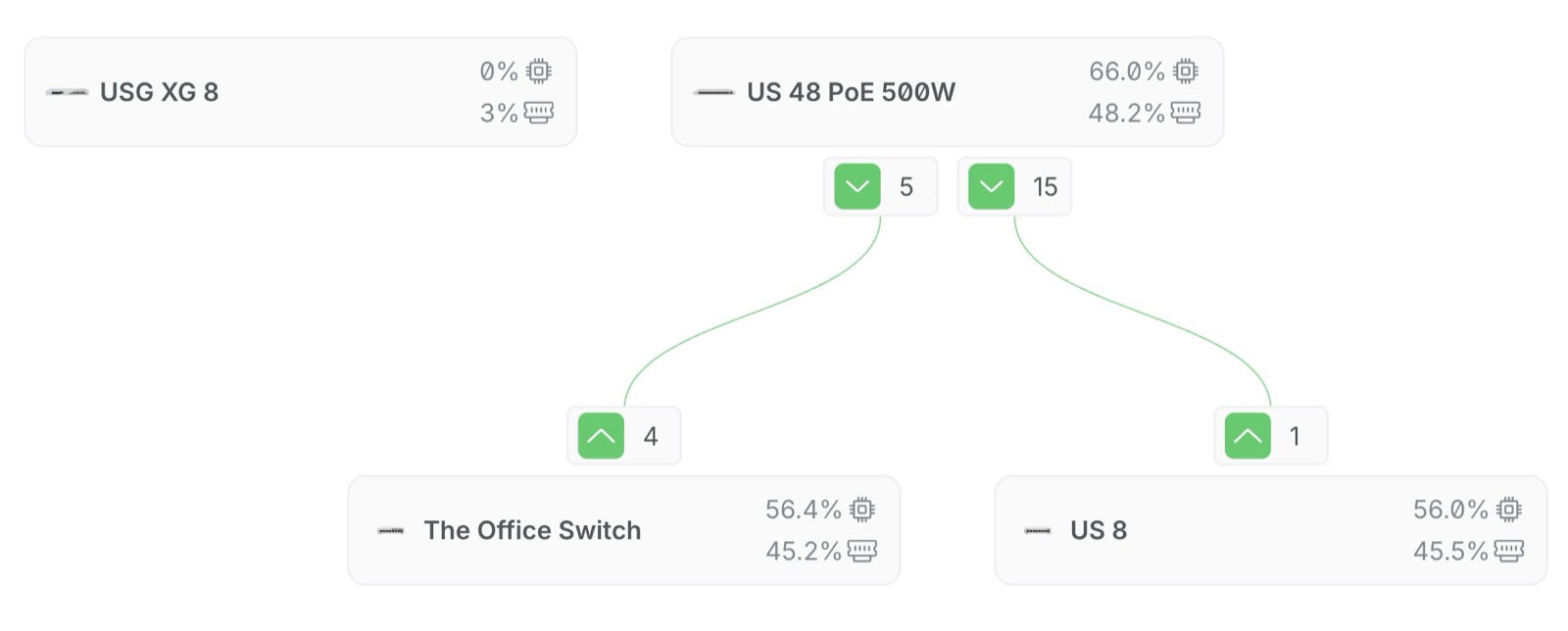
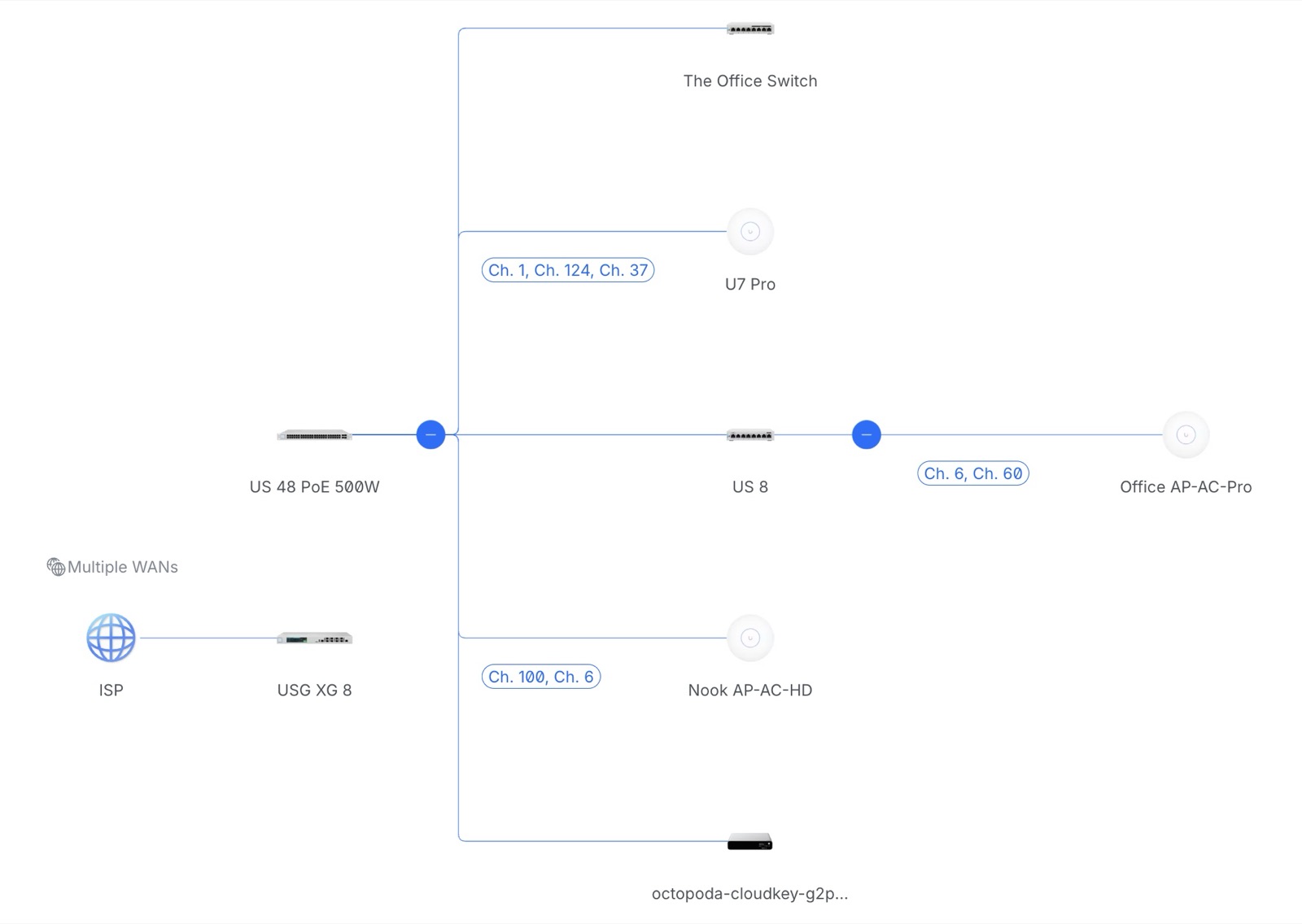
Fiber terminates at the ONT, which hands off to the USG-XG-8 gateway. The gateway uplinks to the US-48-PoE as the core; the US-8 and the office switch hang off it for the office and outlying drops. Access points (U7 Pro, AC-Pro, AC-HD) are all PoE-powered from the switches — no wall-wart injectors to lose. The UniFi controller itself runs locally, on hardware in the same closet rather than in the cloud; what that hardware is — a Cloud Key, a small PC, something else — is to confirm.
Dual-WAN: CenturyLink fiber + T-Mobile 5G failover
This is a real dual-WAN setup, not a single connection with a phone as a spare: CenturyLink fiber (symmetric gigabit) terminates in the network closet as WAN1, and a T-Mobile 5G line ($20/month) terminates in the same closet as WAN2. The gateway is configured to detect a fiber outage and switch to the 5G line automatically, then switch back once fiber is healthy again.
In engineering terms: this is standard UniFi WAN failover — the gateway monitors WAN1 health and reroutes to WAN2 on failure, without anyone touching a setting. The failover thresholds, the WAN priority/load-balancing configuration, and how the 5G modem physically hands off into the gateway (USB modem vs. a small router bridged into a second WAN port) are to confirm.
What this means day to day: a fiber outage is usually a non-event. Streaming, WiFi, the cameras — everything simply keeps working over the 5G backup, generally without anyone noticing anything beyond a brief blip during the switch. If the connection ever feels slower than usual, that’s the tell that you’re temporarily on the 5G line rather than fiber (see Troubleshooting for how to check).
The T-Mobile line is a separate monthly service
PoE budget — the thing to respect
The whole house is PoE: access points, cameras, and the doorbell all draw their power from the switch ports. That’s elegant, but it means the switch’s PoE budget is a real, finite resource.
- Before adding a PoE device, check the switch’s remaining PoE headroom in the UniFi dashboard (the throughput view above shows current load).
- AC-HD access points are relatively hungry (802.3at/PoE+). Don’t assume a port that ran an AC-Lite will run an AC-HD.
- If you add high-draw devices, you may need PoE+ on that port or a small dedicated injector rather than overcommitting the switch.
Adoption, and what a reset actually costs
Every UniFi device on this network is adopted by the controller: it holds no standalone configuration of its own, and everything that makes it behave the way it does — SSIDs, VLANs, firewall rules, per-port and PoE settings — lives on the controller and is pushed down. That is why the closet gear is interchangeable in principle and why a single unplugged uplink is a far more common fault than a misconfigured device.
It is also why a factory reset is expensive here. A reset device forgets its provisioning entirely and comes back as a blank unit broadcasting for adoption; the controller re-adopts it, but every setting that was hand-built has to be rebuilt. Nothing in this deployment is exotic, but it is not five minutes of work either. Reboot freely; reset only deliberately, and only knowing what has to be re-entered afterwards.
Physical reset is the recessed button on each device (hold ~10s until the LED cycles). After a reset a device broadcasts for adoption; the controller picks it up and it is re-provisioned from there. Reset the gateway last if a full rebuild is ever undertaken — resetting it first strands the downstream devices from the controller mid-process.
Moving the UniFi console into your own Ubiquiti account is a one-time step — see the Appendix — Taking Ownership.
Open items
Owner's edition
Full details in the owner's edition — serial numbers, configuration and identity details continue in the complete manual, handed to the buyer at closing.